 OfficeOnce
Guides
How to place a transparent stamp PNG in a document
A transparent stamp PNG can sit on top of document text without a white box. OfficeOnce prepares the image; your document editor handles picture insertion and layout.
Input and result examples
How to place a transparent stamp PNG in a document

A short walkthrough
Can’t play the video? Read the step-by-step instructions. Steps for this task
Steps for this task
How to place a transparent stamp PNG in a document
- 01
Create the stamp PNG
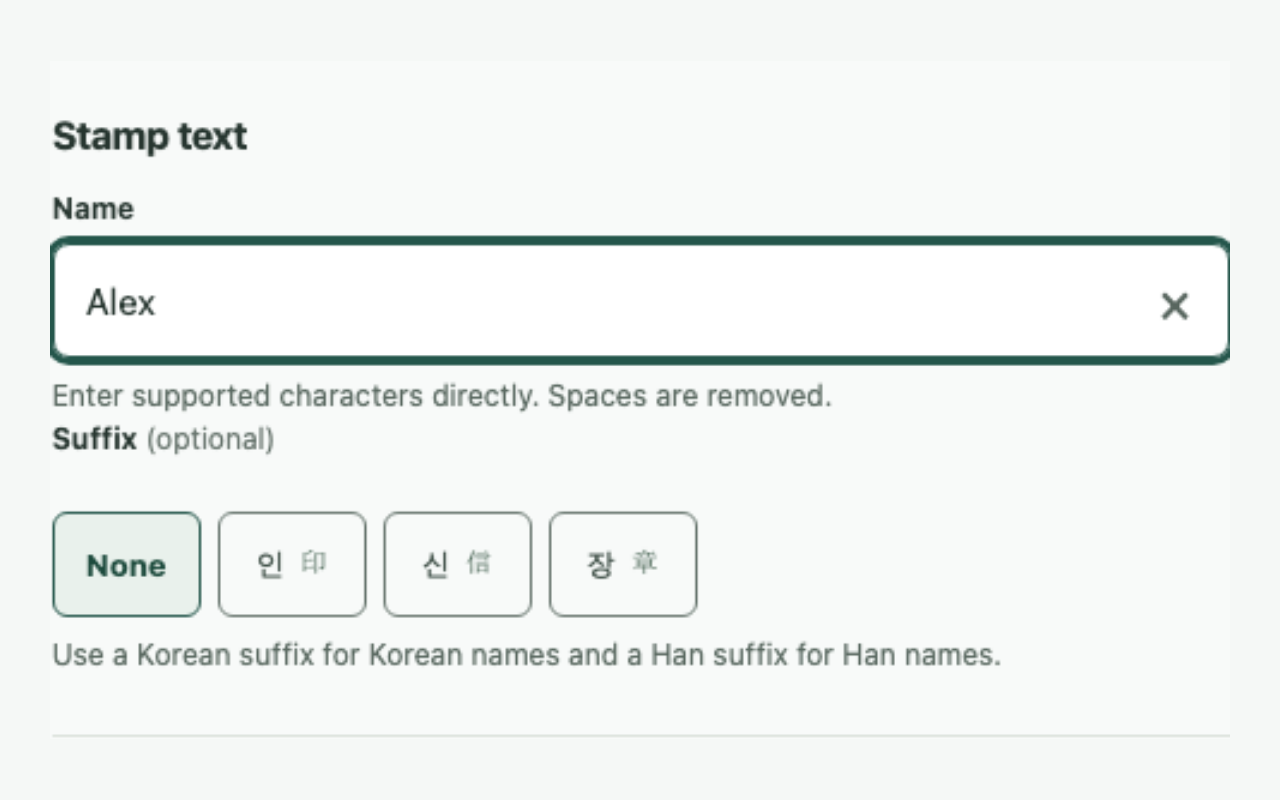
In Create a stamp, choose the name, shape, and font, then save a transparent PNG. Zoom in to check the ink and edges before placing it.
- 02
Insert it as a picture
In Word or Hancom HWP, open the picture or image insertion menu and choose the saved PNG. OfficeOnce does not convert, open, or edit Word or HWP files.
- 03
Set its position and size
Choose an in-front-of-text or behind-text layout in the editor and adjust the printed size. The transparent background lets the stamp sit over text without a white rectangle.
- 04
Check the finished document
Use document preview or export to PDF and check that the stamp is not clipped. Save a new document when you want to keep the original unchanged.
Frequently asked questions
Frequently asked questions
Does OfficeOnce convert Word or HWP files?
No. OfficeOnce creates the transparent PNG only; it does not open, convert, or edit Word or HWP documents. Save the image and use the editor’s own picture-insertion command.
Are the stamp and document uploaded?
No. Inputs and results are processed in this browser. If saving is enabled, work is kept in this device’s IndexedDB for 30 days; you can turn saving off or delete it.
Does the image guarantee a legal signature?
No. An image stamp does not prove identity or guarantee a legal or certificate-based electronic signature. Check the requirements of the organization receiving the document.
Open it easily next time
Add frequent tasks to your bookmarks or home screen for quicker access.
- Mac: press ⌘D to add this page to your bookmarks.
- Windows/Linux: press Ctrl+D to add this page to your bookmarks.
- Safari on iPhone/iPad: choose Share → Add to Home Screen.
- Chrome on Android: choose Menu → Add to Home screen or Install app.