 OfficeOnce
Guides
Arrange receipt photos into one PDF
Bring several receipt photos together in an A4 PDF that is easier to review. Check the order and any dates or notes before saving so the record stays findable.
Input and result examples
Arrange receipt photos into one PDF
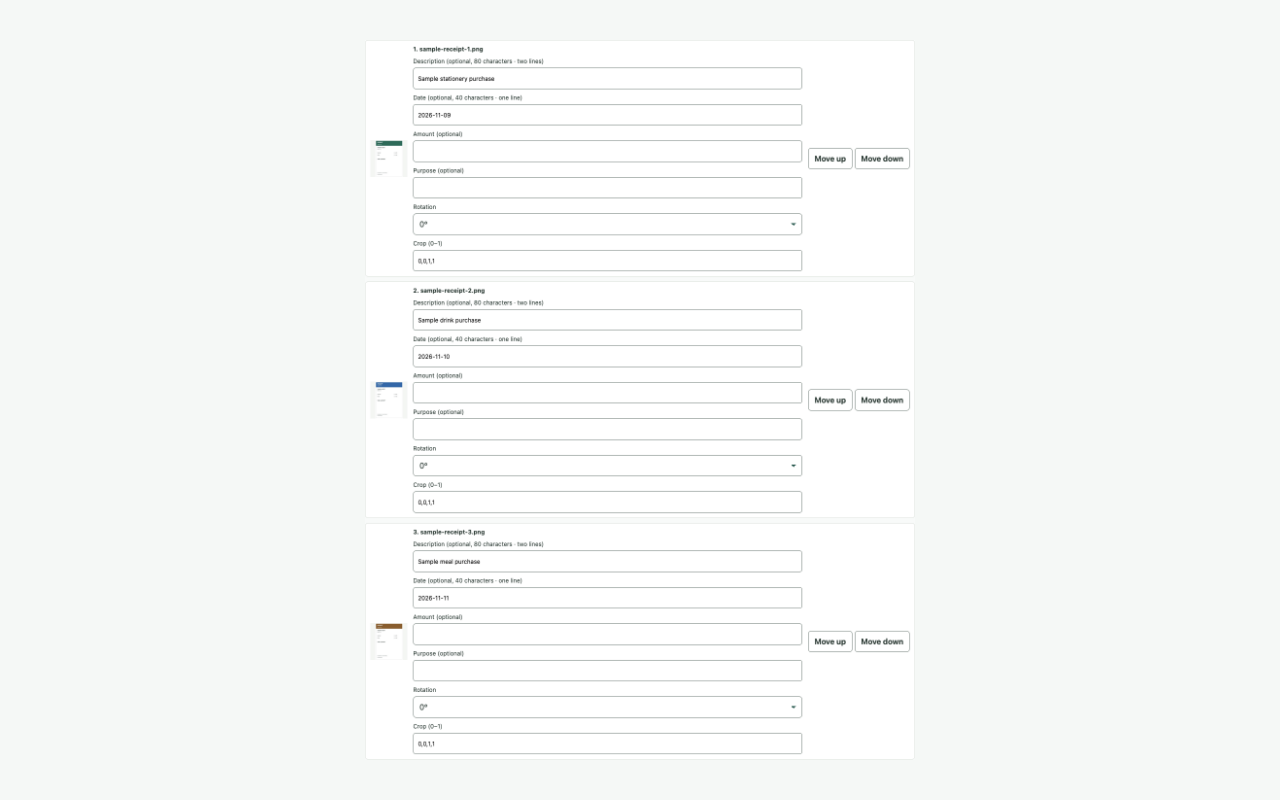
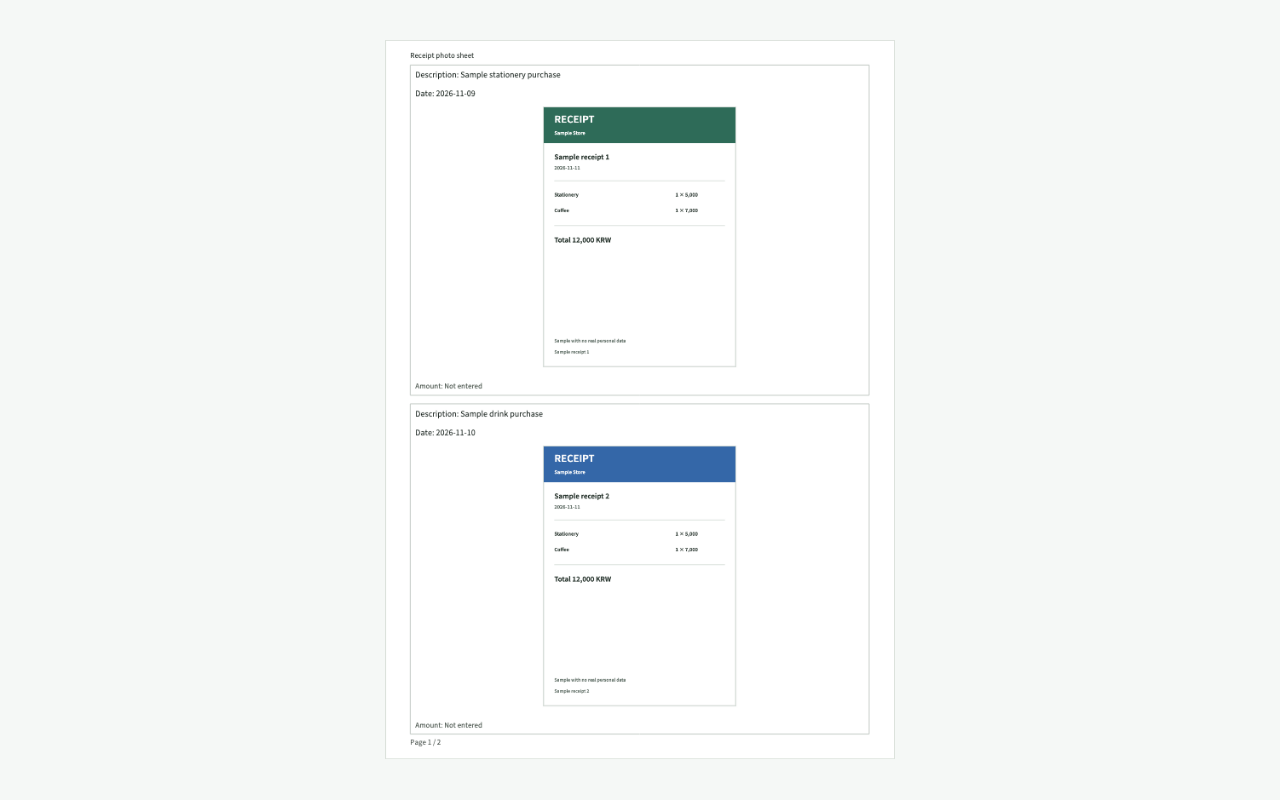
A short walkthrough
Can’t play the video? Read the step-by-step instructions. Steps for this task
Steps for this task
Arrange receipt photos into one PDF
- 01
Choose receipt photos
Choose up to 30 JPEG, PNG, or WebP photos. Check blurry or clipped receipts in the source image first.
- 02
Arrange and annotate
Choose photos per page and set their order. Add dates or notes when useful; this tool does not provide OCR or automatic amount extraction.
- 03
Save the A4 PDF
Check the preview for readable, unclipped receipts, then save an A4 PDF. Open the result once more to verify page count and order.
Frequently asked questions
Frequently asked questions
Does it read receipt amounts automatically?
No. Receipt sheet arranges photos and allows dates and notes; it does not provide OCR or automatic amount extraction.
How many photos can I use?
You can use up to 30 JPEG, PNG, or WebP photos. Follow the tool’s file-size limits and review the preview before saving.
Are photos or PDFs uploaded?
No. Inputs and results are processed in this browser. Saved work stays in this device’s IndexedDB for 30 days, and saving can be disabled or deleted.
Open it easily next time
Add frequent tasks to your bookmarks or home screen for quicker access.
- Mac: press ⌘D to add this page to your bookmarks.
- Windows/Linux: press Ctrl+D to add this page to your bookmarks.
- Safari on iPhone/iPad: choose Share → Add to Home Screen.
- Chrome on Android: choose Menu → Add to Home screen or Install app.