 OfficeOnce
Guides
Turn an XLSX address list into printable labels
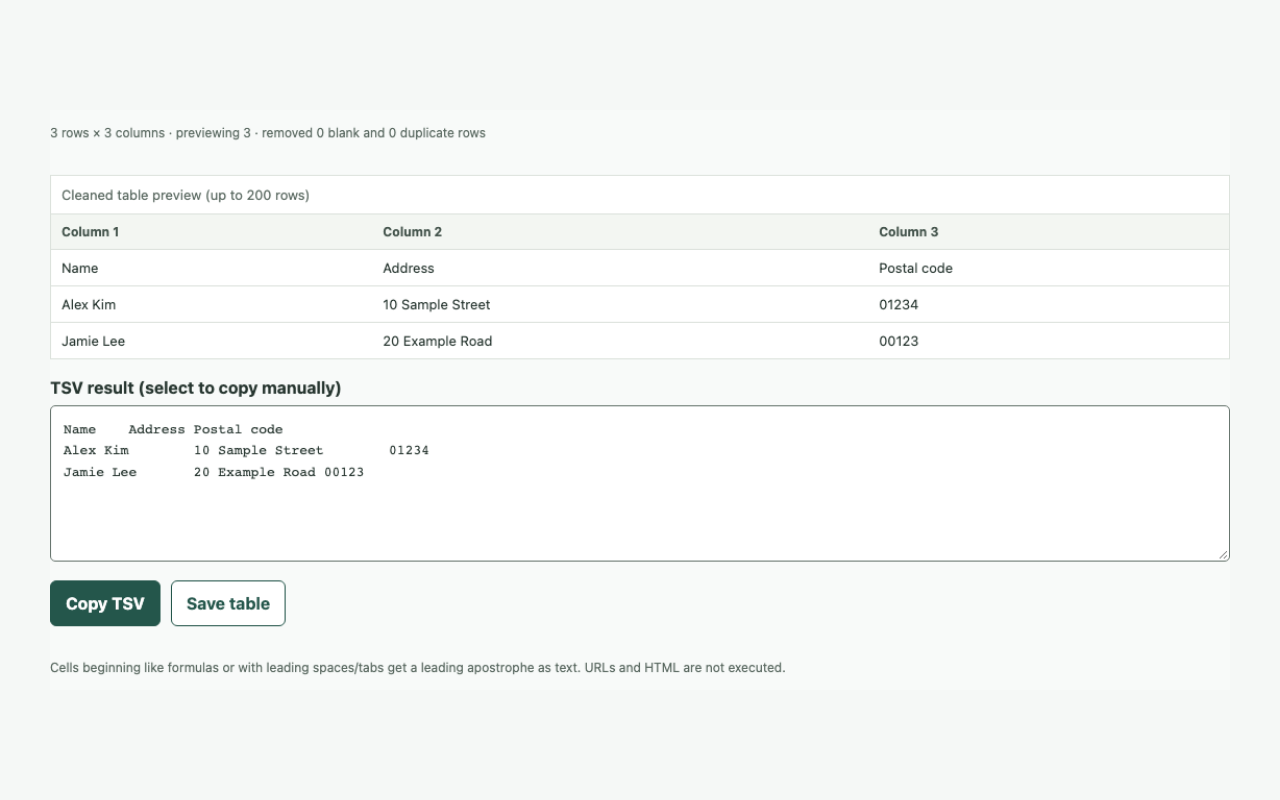
You do not need Microsoft Excel. Open the XLSX directly in Table cleanup, choose a sheet, clean the address data, save CSV, and pass that CSV to Print address labels.
Input and result examples
Turn an XLSX address list into printable labels
A short walkthrough
Can’t play the video? Read the step-by-step instructions. Steps for this task
Steps for this task
Turn an XLSX address list into printable labels
- 01
Choose the XLSX and sheet
Select the XLSX directly in Clean up a pasted table and choose the sheet you need. There is no need to export it with an external Excel app.
- 02
Clean the table
Check headers, spaces, and duplicate rows, and treat postal codes as text. Confirm that leading zeros remain in the preview.
- 03
Save CSV and use it for labels
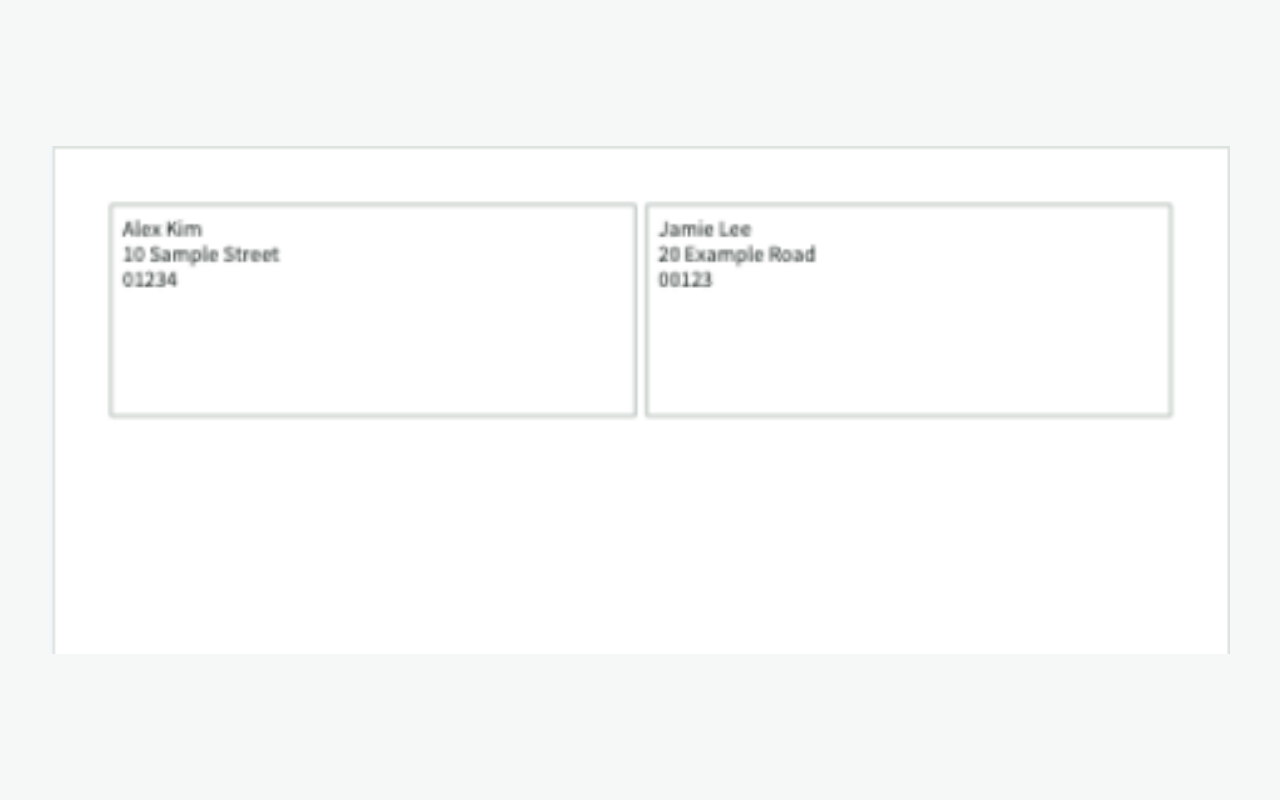
Save the cleaned table as CSV, then choose that CSV in Print address labels. Map up to three columns and select an A4 label layout.
- 04
Check the label PDF and a test print
Save the A4 label PDF at 100% scale and print one test sheet. Check for clipped addresses and keep the source XLSX separately.
Frequently asked questions
Frequently asked questions
Do I need the Microsoft Excel app?
No. Table cleanup reads XLSX directly and lets you choose a sheet. Save the cleaned result as CSV, then choose that CSV in Print address labels.
Will postal-code leading zeros stay?
Check the postal-code column as text in the cleanup preview. The tool cannot restore a zero that was already lost because the XLSX value was stored as a number.
Are my files stored on a server?
No. Files are processed in this browser. When saving is enabled, work stays on this device for up to 30 days, and saving can be disabled or deleted.
Open it easily next time
Add frequent tasks to your bookmarks or home screen for quicker access.
- Mac: press ⌘D to add this page to your bookmarks.
- Windows/Linux: press Ctrl+D to add this page to your bookmarks.
- Safari on iPhone/iPad: choose Share → Add to Home Screen.
- Chrome on Android: choose Menu → Add to Home screen or Install app.