 OfficeOnce
Guides
Clean up a signature photo and place it in a PDF
Turn a photo of an ink signature into a transparent PNG, then position it on a PDF. The two tools work in sequence while keeping the source PDF unchanged.
Input and result examples
Clean up a signature photo and place it in a PDF

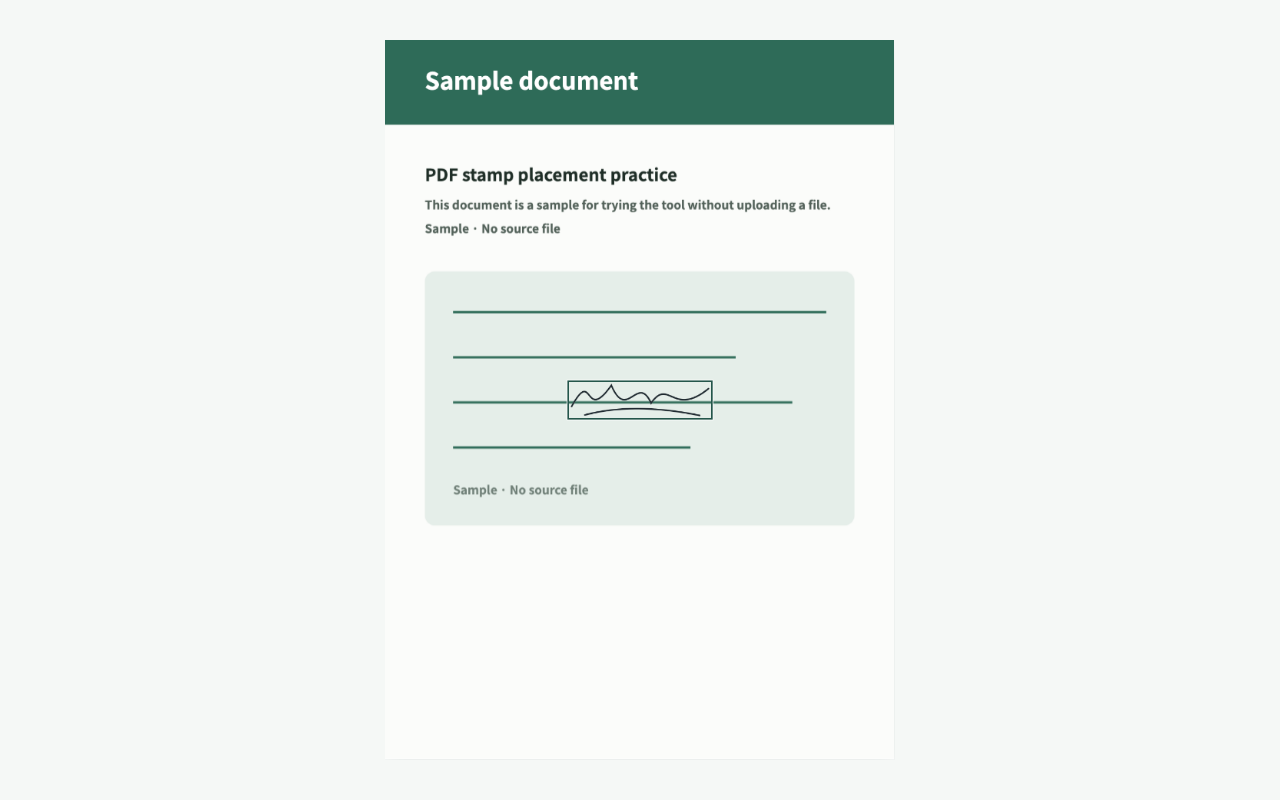
A short walkthrough
Can’t play the video? Read the step-by-step instructions. Steps for this task
Steps for this task
Clean up a signature photo and place it in a PDF
- 01
Prepare the signature photo
Photograph the signature on bright paper and keep it as one PNG or JPEG. A dark or complex background may not separate cleanly.
- 02
Clean the signature
In Remove a signature background, adjust crop, rotation, and removal strength while checking that the ink remains. Save a transparent signature PNG.
- 03
Place it on the PDF
In Stamp a PDF, choose one unencrypted PDF and the signature PNG, then adjust page, position, size, and opacity.
- 04
Check the new PDF
Apply it to the current or all pages, save a new PDF, and open it once more to check the placement. An image is not a legal signature by itself.
Frequently asked questions
Frequently asked questions
Can every photo background be removed?
The cleanup targets bright paper. It does not provide AI separation for dark or complex photo backgrounds, so review the result before saving.
Will the source PDF change?
No. The tool saves a new PDF and leaves the source unchanged. Encrypted or damaged PDFs are not supported.
Is the result a legally recognized e-signature?
Placing an image on a PDF does not prove identity or guarantee a legal or certificate-based electronic signature. Check the receiving organization’s requirements.
Open it easily next time
Add frequent tasks to your bookmarks or home screen for quicker access.
- Mac: press ⌘D to add this page to your bookmarks.
- Windows/Linux: press Ctrl+D to add this page to your bookmarks.
- Safari on iPhone/iPad: choose Share → Add to Home Screen.
- Chrome on Android: choose Menu → Add to Home screen or Install app.